CGAxis Blender Add-on

Browse, download, and import CGAxis assets directly in Blender. PBR materials, 3D models, HDRIs and decals, all without leaving your viewport.

Tutorial

See it in action

Watch how to install the add-on, log in, and import your first asset in under 2 minutes.

Features

Everything you need, inside Blender

No more switching between browser and Blender. Access the entire CGAxis library from your viewport sidebar.

Browse Assets

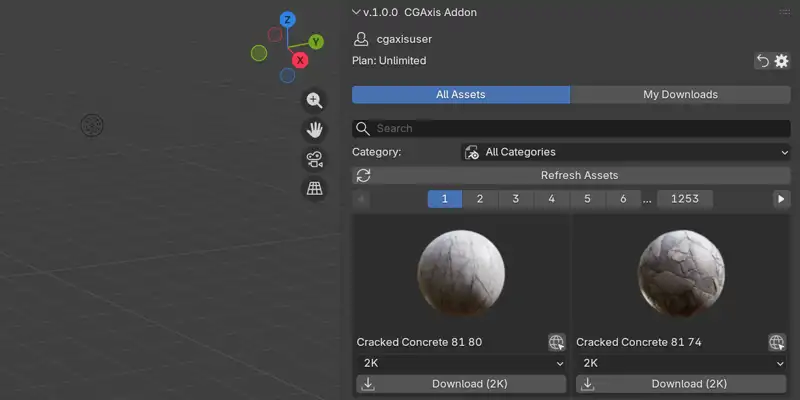
Access the full CGAxis library with thumbnail previews, category filters, subcategories, and search, directly in the 3D Viewport sidebar panel.

One-Click Download

Multi-threaded downloads with real-time progress tracking. Choose your preferred variant and texture resolution before downloading.

PBR Materials

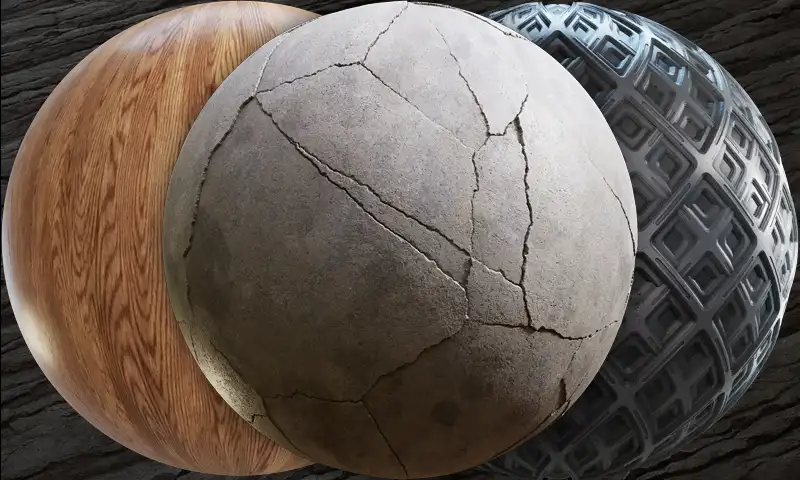
Auto-detect BaseColor, Normal, Roughness, Metallic, and more. Build a proper Principled BSDF material and append it to any selected object.

3D Models

Import Blend and FBX files with automatic named collections and materials. Models are ready to use the moment they're added to your scene.

HDRI Maps

One-click World Environment setup. Load any HDRI and the add-on creates all required shader nodes automatically.

Decals & Imperfections

Apply decals and surface imperfections with automatic Mix Shader blending and alpha transparency support.

Getting Started

Three steps to your first asset

From installation to import in under two minutes.

1Install

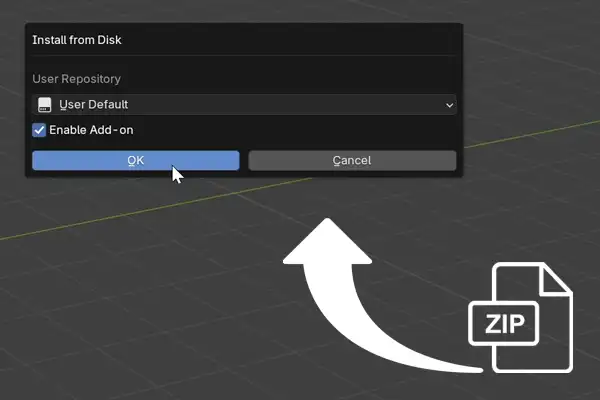
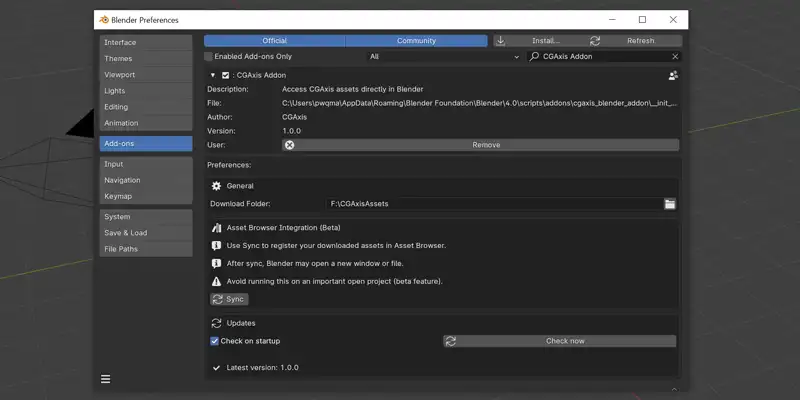
Drag & drop the downloaded .zip file directly into Blender (4.2+) or manually install it via Edit → Preferences → Add-ons.

Installing CGAxis Blender Add-on by drag and drop into Blender 4.2

2Login

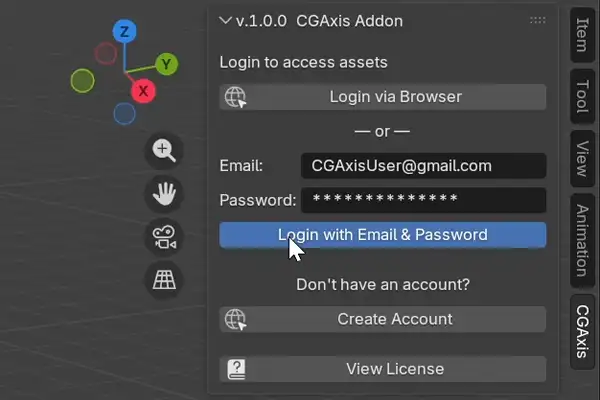
Sign in with your CGAxis account. Use browser-based OAuth for one-click login or enter your email and password directly.

CGAxis Blender Add-on login screen with OAuth and email password options

3Browse & Import

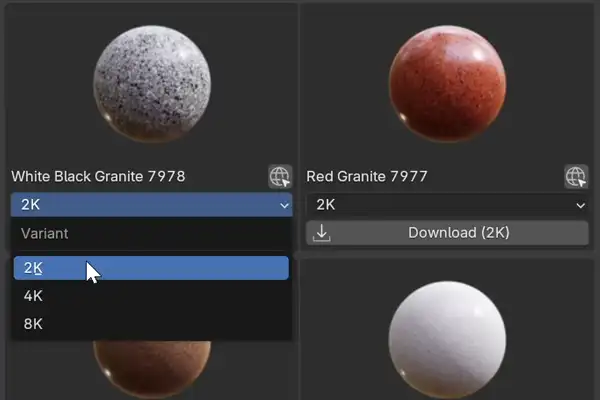
Find assets using categories or search, pick your resolution, download, and add them to your scene with a single click.

Browsing CGAxis asset library and importing a 3D model in Blender viewport
Installation

Installation Guide

Choose the method that matches your Blender version.

  1. Download the .zip file using the button above.
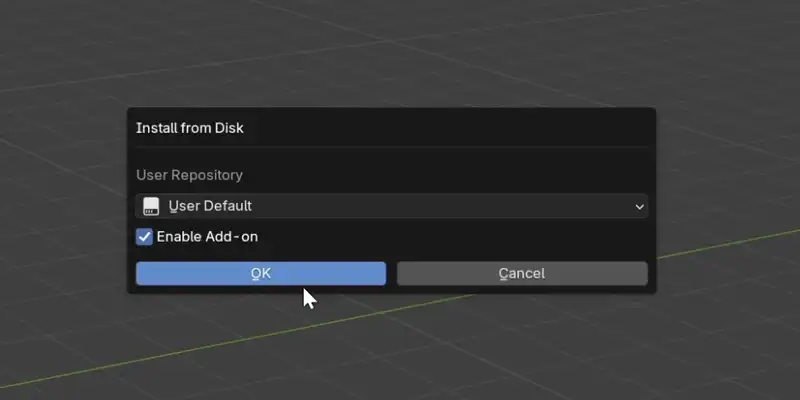
  2. Open Blender and drag & drop the zip file directly onto the Blender window.
  3. Blender will ask for permissions — grant Network (to download assets) and Files (to save them to disk).
  4. The add-on is now installed and enabled automatically.

  1. Download the .zip file.
  2. Open Blender → Edit → Preferences → Add-ons.
  3. Click Install… and select the downloaded zip file.
  4. Enable the add-on by checking the checkbox next to CGAxis Addon.

  1. Open the 3D Viewport.
  2. Press N to open the sidebar.
  3. Click the CGAxis tab.
  4. Log in with your CGAxis account and start browsing!

Asset Library

Supported Categories

Access all major CGAxis asset types directly from the add-on.

PBR materials category in CGAxis Blender Add-on

PBR Materials

3D models category in CGAxis Blender Add-on

3D Models

HDRI maps category in CGAxis Blender Add-on

HDRI Maps

Surface imperfections category in CGAxis Blender Add-on

Imperfections

Decals category in CGAxis Blender Add-on

Decals

Free assets category in CGAxis Blender Add-on

Free

Plans

Works with all CGAxis subscription plans

The add-on is free to install. Your subscription plan determines how many assets you can download. Free assets are always available, no subscription needed.

Changelog

What's New

Support

Need help or found a bug?

Found something that doesn't work as expected? Let us know so we can fix it. When reporting, please include:

Select "Blender Addon" as the topic

FAQ

Frequently Asked Questions

The add-on supports Blender 4.0 through 5.0. For Blender 4.2 and later, you can use the modern drag-and-drop installation. For Blender 4.0 – 4.1, use the classic installation method via Preferences.

Yes, the add-on itself is completely free. You need a CGAxis account to browse and download assets. Free assets are available without any subscription. For full library access, check our subscription plans.

By default, assets are saved to ~/CGAxisAssets. You can change this location in the add-on preferences: Edit → Preferences → Add-ons → CGAxis Addon → Download Folder.

You need an internet connection to browse the asset library and download new assets. However, all previously downloaded assets are stored locally and can be used offline, you can append materials and import models without a connection.

The add-on panel is located in the 3D Viewport sidebar. Press N to toggle the sidebar, then look for the “CGAxis” tab on the right side. If you still don’t see it, make sure the add-on is enabled in Edit → Preferences → Add-ons.

Ready to streamline your workflow?

Download the CGAxis Blender Add-on and access thousands of production-ready assets without leaving your viewport.